|
|
|
|
|
|
|
|
|
|
|
|


Through this activity, you can record the shift deviation of multiple employees under a specific rota plan. After you save the document, you can retrieve it and edit the details of the bulk deviation.
Shift Deviation: A shift deviation refers to allocating the employee to a different shift from the one to which he is currently assigned. The shift deviation will be for an effective period.
For instance, when a breakdown of machinery occurs, employees will be rescheduled. Rescheduling could imply that employees working on a morning shift are transferred to the general shift, until the machinery is restored.
What You Are To Carry Out: You begin by selecting the rota plan under which employees’ shift must be deviated. When you select a rota plan, the system makes available al the shifts under the rota plan. You are to now carry out the following
Choose the shift for which the shift deviation is required
Specify the period for which the deviation in shift will be applicable
Enter the reason for shift deviation
You are to then request the system to show all the employees mapped to the rota plan. Optionally, you can narrow down the list of employees to be shown, by specifying the rota schedule to which the employees are mapped. The list of employees is displayed, along with the number of the assignment that the employee currently holds. The name of his or her scheduled shift is displayed as well, for the first day of the requested period for deviation.
From the employee list that the system shows, you are to select those employees for whom the shift deviation will be applicable.
Permissions for Shift Deviation: After you complete entry of the shift deviation and save the document, the system checks the permission for shift deviation defined for the rota plan. The permission could be Allowed” or “Not Allowed”, and is defined in the “Set Attendance Parameters” page.
Update of Employee Timetable: If the permission is “Allowed”, the system will update the employee’s timetable, to reflect the deviation for all the selected employees.
Weekly Off: Although the employee’s shift has been changed for a specified period, the weekly off that is part of his original rota schedule, will remain the same.
Generation of a Transaction number: After you save the document, the transaction number is displayed as guidance text.
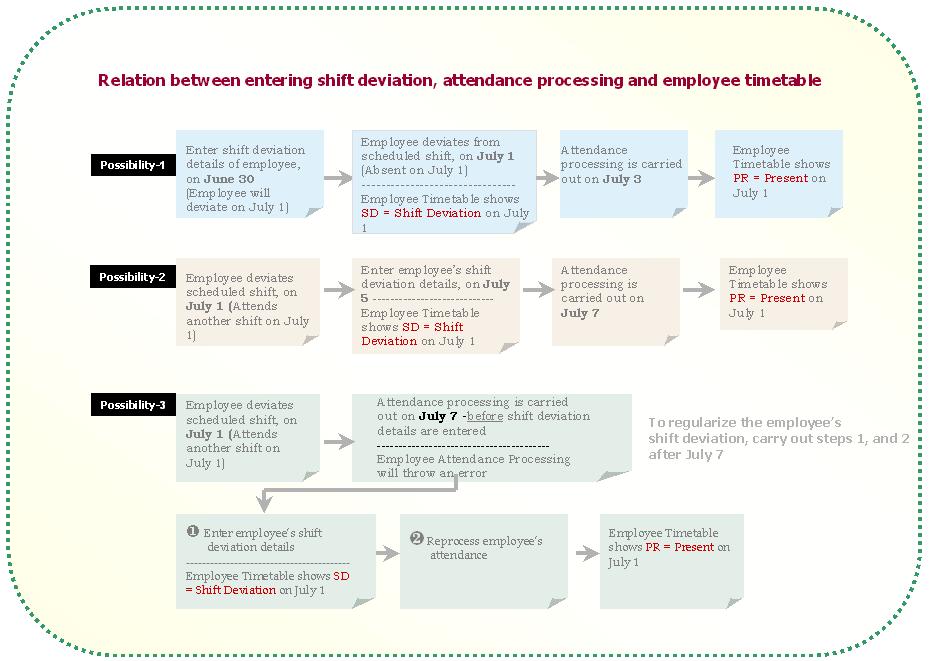
Editing the Shift Deviation Details: You can edit the details of the bulk deviation by entering the transaction number. The system retrieves all the details of the document and permits changes to be made.
Leave Overriding Shift Deviation: After you deviate an employee to a different shift, the employee's leave could authorized for a period that covers the deviated shift. In such instances, the leave prevails over the deviated shift . In this example, the employee is shifted from Shift-A on 25/September/2002 to Shift B on 26/September/2002. Subsequently, if the employee's leave is authorized for 26/September/2002, he is no longer scheduled for Shift B.
The sequence could be reversed. An employee's leave could be first authorized and subsequently the supervisor may attempt to shift him to Shift-B which is on the leave date. The system will not permit the shift deviation, in such instances..
Getting familiar with the pages inside
|
Go to page… |
…To carry out task |
|
Record Shift Deviation |
|
|
View Employee Schedule |

6 Hyperlinked Topics below
Mapping employees to a rota schedule
What you can do in this activity
Transfer employees from one shift to another
Edit details of the shift transfer
View the updated employee timetable
Can you schedule shifts on holidays?
Can an employee change his shift timings?
Can an employee switch from his allocated shift?
Is break time considered during attendance processing?
Can you create spot schedules?
Create and publish an employee timetable that embodies shifts, holidays and weekly-offs
How many schedules can be planned for the employee, for a day?
When payment is on a weekly basis, how do I know when the week starts?
6 Hyperlinked topics below
Can you schedule shifts on holidays?
You can indicate whether shifts can be scheduled on holidays, through specifying “Yes” or “No” in the “Create Rota Plan” page. If you allow shifts to be scheduled on holidays, the system will treat the employee’s attendance on the holiday as either overtime or compensatory off. This will depend on what you chose in the “Set Attendance Parameters” page, where you are to explicitly define whether employee’s attendance on a holiday must be treated as
Overtime, or
Compensatory off
If you do not allow shifts to be scheduled on holidays, any attendance of the employee on holidays will be handled by the stored procedure rules.
Can an employee change his shift timings?
An employee can deviate in shift timings depending on the type of time deviation permission defined for the rota plan from which his rota schedule is derived. The type of time deviation permission could be “Not Allowed”, “With Relaxed Hours” or “With Fixed Hours”.
If the type of deviation permission is “With Relaxed Hours”, an employee can deviate from the timings of his scheduled shift, through one of the following methods:
Employee time deviation
Employee time deviation, in bulk
Employee self service
Employee Time Deviation: Through the “Record Employee Shift Deviation“ activity, a HR person can enter the employee’s deviations in shift timings, for a given date. The deviation can be for
The start time of the scheduled shift
The end time of the scheduled shift
The start or end time of each work session or break session of which the shift consists
Employee Time Deviation, In Bulk: Through the “Record Employee Shift Deviation - Bulk“ activity, a HR person can enter time deviation, in bulk, for the employees mapped to a rota schedule. Just as in the “Record Employee Shift Deviation“ activity, deviation can be for the shift start time, end time and for the timings of the work sessions and break sessions of which the shift consists.
Employee Self Service: Through the Employee Self service component, an employee can request for a deviation in the start time and end time of his scheduled shift. He can use the following:
The “Request Time Deviation” activity
The “Edit Time Deviation Request” activity
The request will come into effect only after the supervisor authorizes this time deviation request. While authorizing, he can edit the following
The start time of the scheduled shift
The end time of the scheduled shift
The start or end time of each work session or break session of which the shift consists
After the time deviation request is authorized, the update is reflected in the Employee Timetable.
Can an employee switch from his allocated shift?
An employee can deviate in shift timings depending on the type of shift deviation permission defined for the rota plan from which his rota schedule is derived. The type of time deviation permission could be “Allowed” or “Not Allowed”.
If the type of deviation permission is “Allowed”, an employee can deviate from the timings of his scheduled shift, through one of the following methods:
Employee shift deviation
Employee shift deviation, in bulk
Employee self service
Employee Shift Deviation: Through the “Record Employee Shift Deviation“ activity, a HR person can enter the employee’s deviations in shift for an effective period. The name of the shift to which the employee must transferred is specified, as well.
Employee Shift Deviation, In Bulk: Through the “Record Employee Shift Deviation - Bulk“ activity, a HR person can enter shift deviation, in bulk, for the employees mapped to a plan. The name of the shift to which the employee must transferred is specified, as well. Just as in the “Record Employee Shift Deviation“ activity, shift deviation can be for an effective period.
Employee Self Service: Through the Employee Self service component, an employee can request for a deviation in his scheduled shift. He specifies the name of the shift to which a transfer is required. He can use the following:
The “Request Shift Deviation” activity
The “Edit Shift Deviation Request” activity
The request will come into effect only after the supervisor authorizes this shift deviation request. While authorizing, he can edit the following
Effective start date of the shift deviation
Effective end date of the shift deviation
After the shift deviation request is authorized, the update is reflected in the Employee Timetable.
Is break time considered during attendance processing?
This will depend on whether “Inclusive” or “Exclusive” was chosen for the rota plan from which the rota schedule was derived. If “Inclusive” was chosen, the system will include the break time in the number of working hours for which the employee will be paid. Otherwise, the break time will be excluded.
Complete entering the details in the “Edit Rota Plan” page
Enter the “Set Attendance Parameters” page
In the “Break Time” field, select “Inclusive” to indicate that the break time must be included, otherwise select “Exclusive”
Compensatory off can be allowed, if shifts are scheduled on holidays.
Whether shifts can be scheduled on a holiday will depend upon what is defined for the specific rota plan from which the employee’s rota schedule is derived. If the rota plan allows scheduling shifts on holidays, the system will treat the employee’s attendance on the holiday as either Compensatory off, or Overtime, depending on the choice
If shifts are not scheduled on holidays, compensatory off can be allowed only through stored procedure rules
The overtime method of calculation is defined for the rota plan from which the employee’s rota schedule or adhoc schedule is defined. Overtime can be calculated through
An overtime conversion table. . For example, if the employee worked 5 hours on his weekly off, and his conversion factor is 1.5, he becomes eligible to be paid for 7.5 hours as overtime
An overtime conversion table for each slab of hours
Any stored procedure rule
The overtime conversion table can co-exist with the stored procedure rule, to determine overtime calculations But if there is a conflict, the stored procedure rule will prevail.
Can you create spot schedules?
You can create spot schedules for any employee in the organization. The “Quick Employee Rota Schedule Mapping” activity allows you to map individual employees to a rota schedule at any time. Although the rota schedules are already created, you can map employees to the rota schedule. Essentially, this activity takes care of situations where new employees need to be fitted into a rota schedule
This activity consists of specifying the employee who will be mapped, and the rota schedule to which the employee will be mapped. The number of the assignment based on which he is mapped must be specified as well, because mapping is assignment-based. Finally, you are to specify the date from which the mapping will be effective. By default, the employee’s mapping will be effective until the “effective to” date of the rota schedule.
Create and publish an employee timetable that embodies shifts, holidays and weekly-offs
Create or edit the holiday master, to create the list of holidays that can be used across the organization.
Create different shifts, indicating the start and end time of each shift.
Group one or more shifts, by using the Create Rota Planactivity. Through this activity, you can also associate the required list of holidays and the overtime rule applicable to the employees.
Group the required shifts from the rota plan, to Create a Rota Schedule. Through this activity, you can sequence the shifts and the duration of each shift. The cycle of shifts and the weekly-offs in each shift are therefore established.
Map the employee to the rota schedule. The employee automatically inherits the rota schedules, which means that the system can display the shifts and weekly-offs of each employee.
Ensure that the leave and training details applicable for an employee are integrated as well, through the Leave and Training components.
How many schedules can be planned for the employee, for a day?
On a given day, an employee can be assigned to either a rota schedule or an adhoc schedule, but not to both.
OT Applicable after (Hours/Day)-The number of hours you enter in this field, plus the number of hours of which the shift consists, together form the total number of hours after which the employee becomes eligible for overtime calculation. Example: The shift consists of 8 hours. If you enter 1 in this field, the employee will become eligible for overtime only after he works 9 hours in the day. Dependent factors - Check this option to indicate that there is a ceiling to the number of weekly hours for which overtime can be availed - Maximum OT hours/week - If you indicated in the “Weekly OT Limit Applicable” field that there is a ceiling to the weekly overtime, enter the maximum hours in a week for which overtime can be availed.
Define overtime conversion for each slab of hours
When payment is on a weekly basis, how do I know when the week starts?
In the rota plan from which the employee’s rota schedule is derived, you are to specify the day on which the week begins, example, Monday.
After time deviation has been authorized, can an employee’s shift deviation be effected on the same date?
A shift deviation can be effected on the same date, by one of the following methods
Recording shift deviation through the “Employee Scheduling” component
Authorization of the employee’s shift deviation request. This authorization is carried out by the supervisor, through the “Employee Self Service” component.